
Complete 2026 Smart TV Setup Guide: Stream iBoos IPTV on Samsung, LG, & Sony
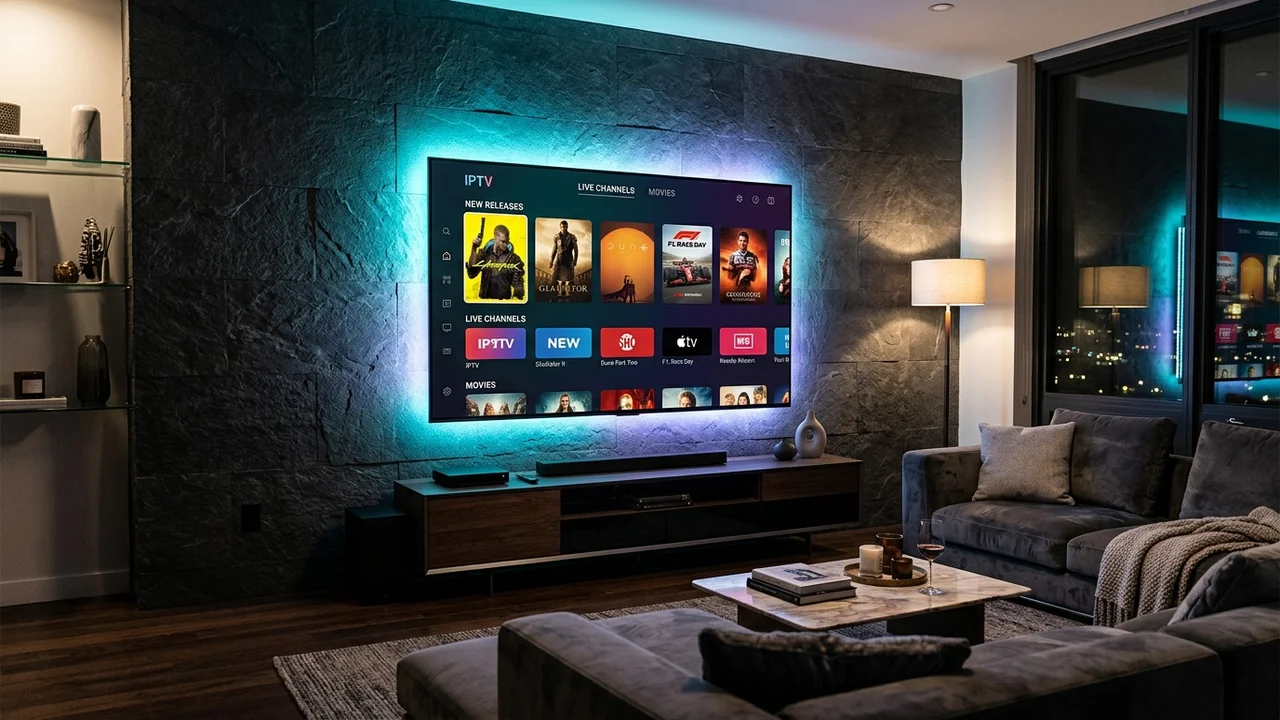
You don't need to purchase a separate streaming box to enjoy iBoos IPTV. Modern Smart TVs powered by Samsung Tizen, LG webOS, and Google TV support high-performance IPTV applications directly from their native app stores with full 4K HDR and Dolby Audio support.
1. Best Native IPTV Apps by TV Brand
Depending on the operating system powering your Smart TV, different player applications deliver the smoothest channel switching, fastest EPG guide loading, and native 4K support:
Recommended Apps: IBO Player or Smart IPTV (SIPTV). Search directly in the Samsung Apps store.
Recommended Apps: IBO Player Pro or IPTV Smarters Pro. Available in LG Content Store.
Recommended Apps: TiviMate IPTV Player or XCIPTV. Download from Google Play Store.
2. Step-by-Step Setup Using Xtream Codes API
The fastest and most stable method to connect your iBoos IPTV subscription is using the Xtream Codes API (provided immediately upon order via WhatsApp and Telegram):
-
1
Download & Launch Player:
Install your chosen app (e.g. IBO Player or TiviMate) from your Smart TV's official app store and open it.
-
2
Select Xtream Codes Login:
Choose "Login with Xtream Codes API" (often labeled as Playlist via Xtream API).
-
3
Input Connection Credentials:
Enter Playlist Name:
iBoos IPTV 4K, Server URL (e.g.http://iboos...), Username, and Password. -
4
Sync Channels & EPG:
Press Add Playlist. Your Smart TV will synchronize 28,000+ live stations and 154,000+ VOD movies in under 45 seconds.
3. Display & Audio Settings for Maximum Fidelity
To ensure your 4K OLED or QLED screen delivers true cinematic immersion, configure these audio/video settings:
- Audio Output: Set Passthrough to Auto / Bitstream to enable Dolby Digital 5.1 and Atmos surround on soundbars.
- Frame Rate Matching: Enable Auto Frame Rate (AFR) if available in your player so 24 FPS movies and 60 FPS sports match your screen's native refresh rate.
- Aspect Ratio: Set to Fit to Screen / 16:9 to prevent pillarbox letterboxing on widescreen broadcasts.
Setting up multiple Smart TVs across your home? Choose our 2 or 3 Connection Plan. Each TV streams independently with zero conflicts or account lockouts.
Ready to Experience Premium 4K IPTV in USA?
Unlock 28,000+ live stations, 154,000+ VOD movies, and every live sports pass with Anti-Freeze 9.8 server clustering.